How to vectorize a logo for embroidery: a practical guide
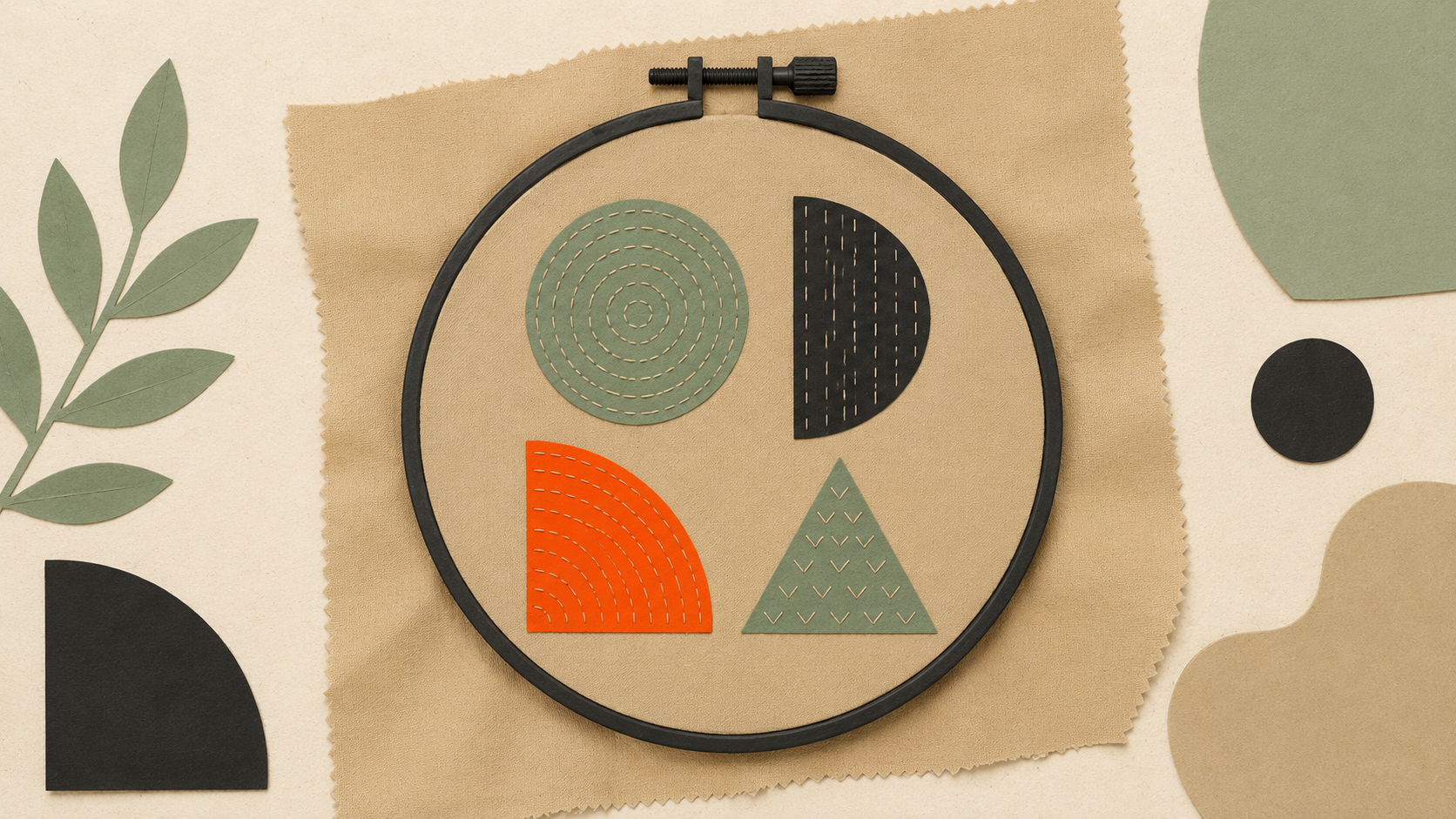
How to vectorize a logo for embroidery: a practical guide
Embroidery shops live and die by file quality. A clean vector file digitizes smoothly. A pixelated screenshot can take hours to clean up, or come out looking sloppy regardless of how skilled the digitizer is.
If you run an embroidery shop or you're sending a logo to one, here's exactly what makes a logo "embroidery-ready" and how to get there from whatever file you have right now.
Why embroidery needs vector files specifically
Embroidery digitizing software (Wilcom, Hatch, Embird, Pulse, Brother PE-Design, Bernina ArtLink) reads vector outlines and converts them into stitch paths. The software interprets each shape as something the needle should fill with thread.
When you start with a clean vector file, the digitizing software can:
- Identify each color region as its own fill area
- Calculate stitch directions for each shape
- Set proper stitch density per region
- Generate clean satin-stitch borders along edges
When you start with a raster file, the software has nothing crisp to work with. The digitizer has to manually trace every shape, guess where edges should be, and rebuild what the original designer drew. That's why digitizing fees double or triple when you send a JPG instead of a vector.
What "embroidery-ready" actually means
A vector file you can hand off without apology has these properties:
Clean, closed paths. Every shape is a sealed outline. No stray points, no broken curves, no overlapping nodes that confuse the digitizer.
Solid colors, no gradients. Embroidery thread is one color per region. A gradient just confuses the process.
Limited color count. Most embroidery jobs run 4 to 8 thread colors. If your logo has 20 colors, the digitizer either simplifies it (often badly) or charges more for the extra thread changes and longer machine time.
Minimum line weight respected. Embroidered lines below about 1 mm at final stitch size don't hold up. If your logo has hairline details, they need thickening before digitizing.
Text outlined to paths. Live fonts can shift between machines and software versions. Outlined text is locked in and identical everywhere.
Sized close to final stitch size. Vectors scale freely, but digitizers prefer a file sized roughly to the patch or chest application so they can judge stitch density correctly.
The conversion workflow when you only have a raster
You have a customer logo. It's a 600-pixel JPG or PNG. The embroiderer asked for a vector. Here's the path.
Step 1: Start with the highest-quality raster you can find.
A 1,200-pixel logo converts much better than a 400-pixel one. Pull the largest version available from the customer's website (right-click the logo and "Open image in new tab" usually shows you the source resolution). If they sent a screenshot, that's a different problem worth addressing separately.
Step 2: Run the raster through a vectorization tool.
ArtworkUpgrade converts raster logos to vector. Upload the JPG or PNG, see a free preview before paying, then download the file in SVG, PDF, EPS, AI, or DXF. For embroidery, EPS and AI are the most universally accepted inputs to digitizing software.
If the conversion preview looks clean — sharp edges, separated colors, no noise — you're ready to digitize. If it looks rough (especially around small text or thin lines), you have a file quality problem at the source. Either ask the customer for a better version or accept that you'll need to clean it up in vector software before digitizing.
Step 3: Open the vector in Illustrator or Inkscape and clean up.
Even a good auto-conversion benefits from a quick review:
- Delete any noise paths (tiny stray shapes from JPG compression)
- Combine like-colored regions into single paths
- Convert all text to outlines if any text is still live
- Confirm minimum line weights are above 1 mm at final size
- Remove any unintended overlaps between shapes
This usually takes 10 to 20 minutes for a typical logo. Much faster than redrawing from scratch.
Step 4: Save in the format your digitizing software expects.
Wilcom and most embroidery software accept EPS, AI, or PDF. SVG works in some but not all. Save the cleaned vector in the right format and hand off to digitizing.
What to do when the customer sent a screenshot
This happens constantly in embroidery. Customer screenshots their own website, sends you the image, expects digitizing.
You have two paths. Either ask for a better source file (often the customer doesn't have one and won't find one), or convert what you have. If the screenshot is reasonably high resolution (1,000 pixels or more), auto-vectorization usually produces usable results. For the longer version of this exact conversation, see our guide on what to do when a customer sends a screenshot of their logo.
If the screenshot is small or heavily compressed, conversion will struggle. At that point you either get a designer to redraw the logo in vector or you tell the customer the result won't match their expectations.
Common embroidery file failures
A few patterns that come up repeatedly in shops.
Tiny text in the logo. A wordmark with text smaller than about 5 mm at stitch size will be illegible. Embroidery needs minimum stroke widths the digitizer can actually stitch. If the logo has fine print at the bottom ("Est. 1987"), it usually has to be either dropped or set in a larger size for the embroidered version.
Photographic elements. If the logo contains a photo or a detailed illustration (a person's face, a complex landscape), embroidery can't render it cleanly. You'd need to simplify the design to solid color regions before digitizing.
Gradients. A gradient from blue to purple looks great on screen and impossible to stitch. The digitizer will pick one color or fake a gradient with stippling, which usually disappoints the customer. Set expectations upfront if the logo has gradients.
Very thin lines. Decorative thin strokes (the underline beneath a wordmark, the outline of an icon) often vanish at small embroidery sizes. Either thicken them or warn the customer they may not survive.
Crowded detail. Multiple small elements close together blur into each other once stitched. Pull elements apart or simplify the layout.
The customer conversation
When a customer sends a file that's not embroidery-ready, you have a conversation to have. Most shops handle it the same way: explain the problem in plain language, offer paid file conversion as a service, deliver the cleaned-up vector along with the embroidered product.
This is similar to the conversation print shops have with customer-supplied files — same root cause, slightly different output. The fix is part education, part service offering.
If the customer is going to keep coming back for orders, doing the vector conversion once and sending them the files for future use saves both sides time. They send you proper files next time. You don't have this conversation again.
Embroidery for crafters vs commercial shops
A quick distinction worth making.
Commercial embroidery shops running multi-head machines have professional digitizers and tight file standards. They charge digitizing fees because they put real time into getting a logo embroidery-ready.
Home embroiderers with single-needle machines (Brother, Janome, Bernina home models) often work from .DST, .PES, or .EXP files that someone else digitized. They typically don't have digitizing software themselves. For this audience the path is usually: send the raster to a digitizing service, get back a machine-ready stitch file, embroider.
In both cases, starting with a clean vector makes everything downstream easier.
When auto-vectorization isn't enough
For most logos, automatic vectorization gives a clean enough result for embroidery. Sometimes it doesn't:
- Logos with very hand-drawn elements (calligraphy, sketched icons)
- Logos with intricate filigree or detailed patterns
- Logos that have been compressed and recompressed (JPG of a JPG of a screenshot)
For these, a designer can manually clean up the auto-vectorized output, or in worst cases redraw the logo from scratch in vector software. Budget for the extra time. For most jobs the auto-vectorized result is the starting point that saves hours of work.
Apparel decoration shares the same root problem
If you do embroidery, you probably also see customers wanting screen printing or DTF for the same logos. The file conversation is identical across all apparel decoration methods. A logo that's not ready for embroidery is usually not ready for t-shirt printing either. Solve the file problem once, and the customer's whole apparel program gets easier — including screen-printed jobs which have their own related requirements.
Working with a digitizing service
Most embroidery shops either have an in-house digitizer or outsource digitizing to a specialist service. Either way, the file conversation is similar.
In-house digitizing. The shop reviews your vector file, sets stitch directions, chooses thread colors from their inventory (or orders new threads if needed), and runs a sample on similar fabric before committing to your full order. Turnaround is usually fast — same day to a few days for standard orders. Cost is built into the per-piece price or charged as a one-time setup fee ($25 to $100 typical).
Outsourced digitizing. The shop sends your vector to a digitizing service (usually overseas) and gets back a stitch file within 24 to 48 hours. The digitizing service charges per design, the shop marks it up or absorbs the cost. Quality varies — premium services produce sample images and let you preview the stitch result before committing.
Self-supplied stitch files. If you already have a stitch file (.DST, .EXP, .PES, .JEF, .VP3 depending on machine), you can sometimes skip digitizing entirely and pay only for production. Most commercial shops will accept stitch files but will ask which machine they were digitized for — stitch files are machine-specific in subtle ways.
The choice between these workflows usually comes down to volume and lead time. High-volume jobs benefit from in-house digitizing because the cost amortizes across many pieces. One-off custom orders often work better with self-supplied or outsourced files.
If you're providing files to a shop, ask which workflow they use. Some shops won't accept self-supplied stitch files because they can't verify quality without re-digitizing. Others welcome them.
One vector source, many production methods
The vector cleanup work you do for embroidery isn't single-use. The same cleaned EPS or AI file feeds every other production method the customer is likely to ask for.
Cap embroidery this month, screen printed shirts next month, vinyl decals for the company van, a banner for an event — they all want the same vector input. A shop that vectorizes a customer's logo once and stores the file properly avoids that work for every future order from that customer.
This is also how to position vectorization on your invoice. It's not an embroidery-only fee. It's a brand asset deliverable the customer keeps. The next vendor they work with gets handed a clean vector, which means less friction for everyone and a happier customer who tells other small business owners about you.
For shops doing volume, build a simple folder structure: one folder per customer, containing their raster source, the cleaned vector outputs, the embroidery stitch file, and any color/thread notes. Six months in, you'll be pulling files in seconds instead of re-emailing customers asking for their logo again.
Underlay, density, and what the digitizer actually controls
Once your clean vector hands off to the digitizer, several decisions get made that the vector file can't influence — but knowing about them helps you set customer expectations.
Underlay is the foundation stitching the machine lays down before the visible design. It anchors the fabric and prevents shifting. The digitizer picks underlay type based on fabric (lighter for knits, heavier for piqué or twill) and design complexity. You see none of this in the final embroidery, but it's the difference between a clean, flat result and a puckered mess.
Stitch density is how tightly the threads pack together. Higher density means a more solid color appearance but more thread used, longer machine time, and more chance of puckering on light fabrics. Lower density saves cost and runs lighter. Most digitizers default to a reasonable middle and adjust based on design.
Underlay direction and pull compensation matter for type and tight curves. Long satin stitches pull fabric as they sew. Good digitizing compensates by extending stitches slightly past their visual edge so the finished result lands where the design wants it.
Color sequencing determines what order the machine stitches in. Smart sequencing minimizes thread changes and prevents one color from being buried under another. Bad sequencing means a stitched logo that looks fuzzy or has a color sitting on top of another.
None of this is in your file. All of it gets handled in the digitizing step. But when you're discussing pricing or timeline with a customer, knowing what the digitizer is doing helps you explain why a $20 stitch file takes 30 minutes of skilled work, not 30 seconds of automation.
The takeaway
Embroidery needs vector files because digitizing software builds stitch paths from clean shapes, not from pixels. The conversion from raster to vector is straightforward when you have a decent source. The customer conversation about file quality is where most embroidery shops can either lose time or build trust. Educate, convert, deliver the vector files back to the customer so they can use them for future orders. Speaking of which — solving the file problem once tends to fix most of the apparel printing complaints you've been fielding.
Stop redrawing customer logos by hand
ArtworkUpgrade vectorizes any logo or design in 30 seconds. Free preview before you pay. $7 per design, all formats included.
Try free preview →More guides for Industry Guides
Cricut SVG vs DXF: which file format to use when cutting
SVG and DXF both work in Cricut Design Space but they're not interchangeable. Here's when to use each, the trade-offs, and how to convert from a raster.
Screen printing: how to prepare your file for crisp, clean prints
Screen printing demands color-separated vector files. Here's how to prep your file, spec colors, handle underbases, and avoid the separation fee.
Sublimation file format guide for crafters and small print shops
Sublimation is file-fussy and unforgiving. Here's the resolution, color mode, transparency, mirroring, and substrate rules your file needs to follow.